Add Oracle's 11
to your Home Screen
Pin Oracle's 11 to your iPhone like a real app. It opens full-screen — no address bar, no Safari tabs — straight to your bracket. Takes about ten seconds, and there's nothing to download.
-
1
Open this page in Safari
This only works in Safari — not Chrome or an in-app browser, so if you tapped a link from another app, open it in Safari first.
-
2
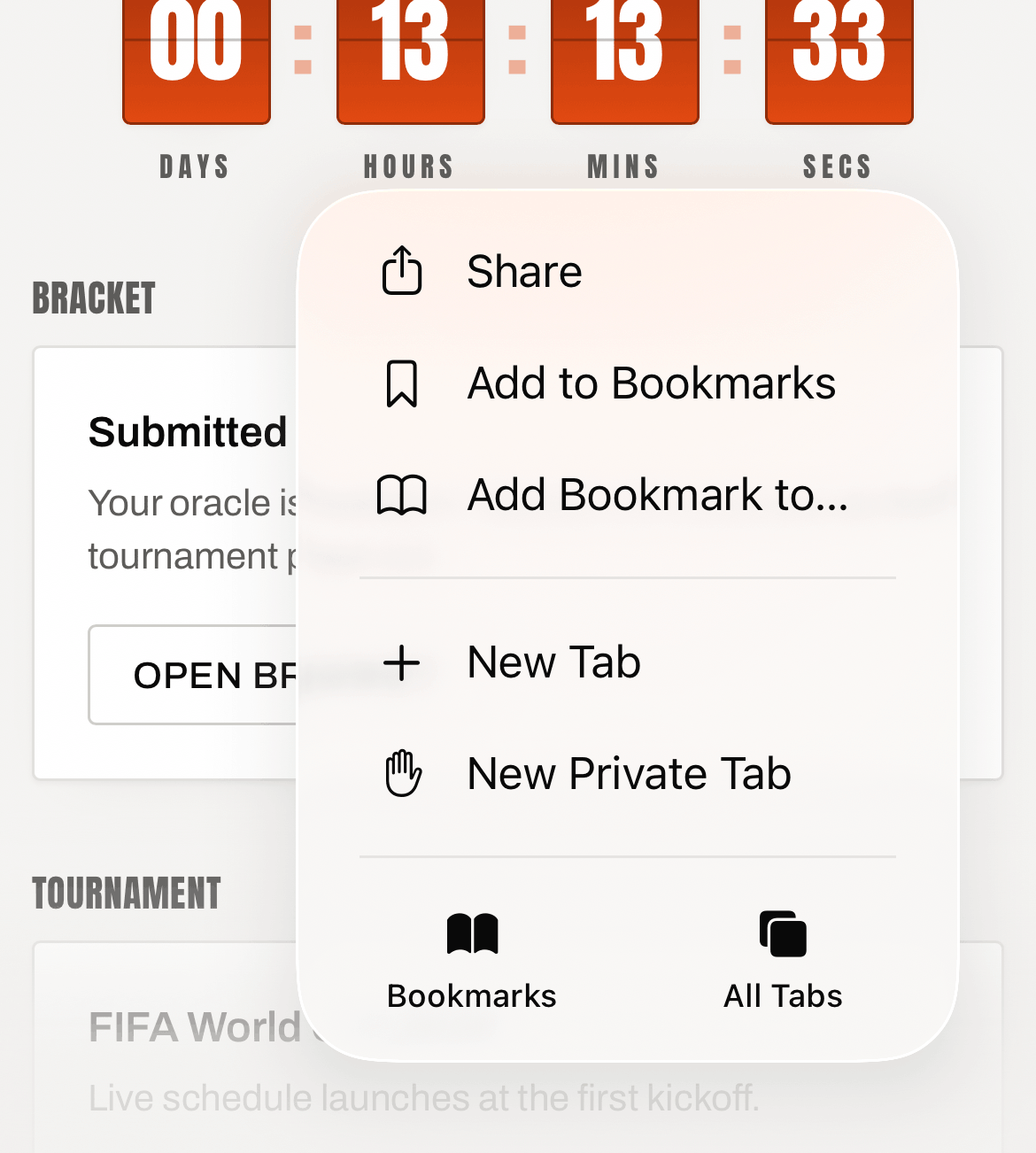
Tap the Share button
It's the square with an arrow pointing up, in the toolbar at the bottom of the screen (or top-right on iPad).
-
3
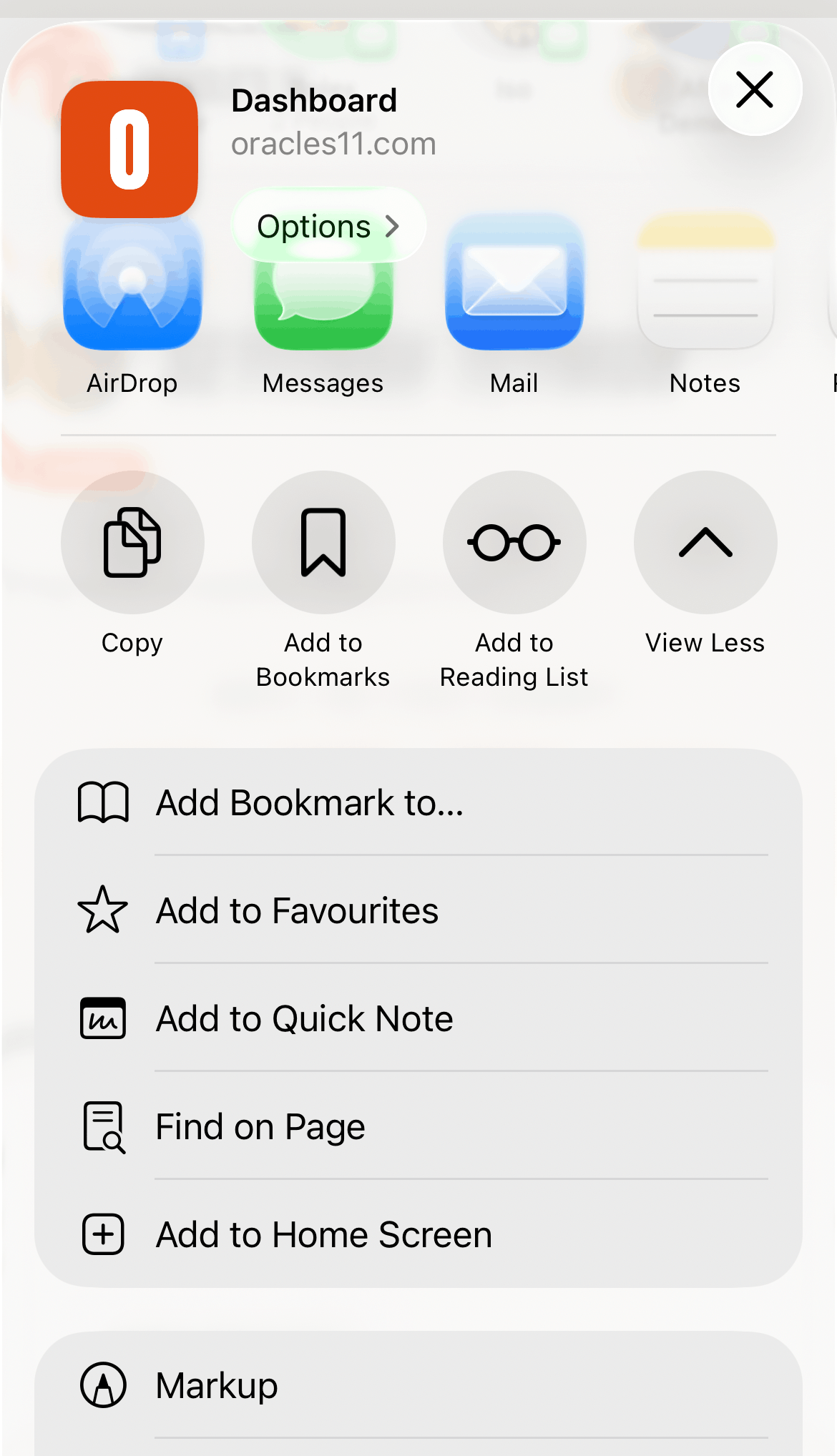
Choose "Add to Home Screen"
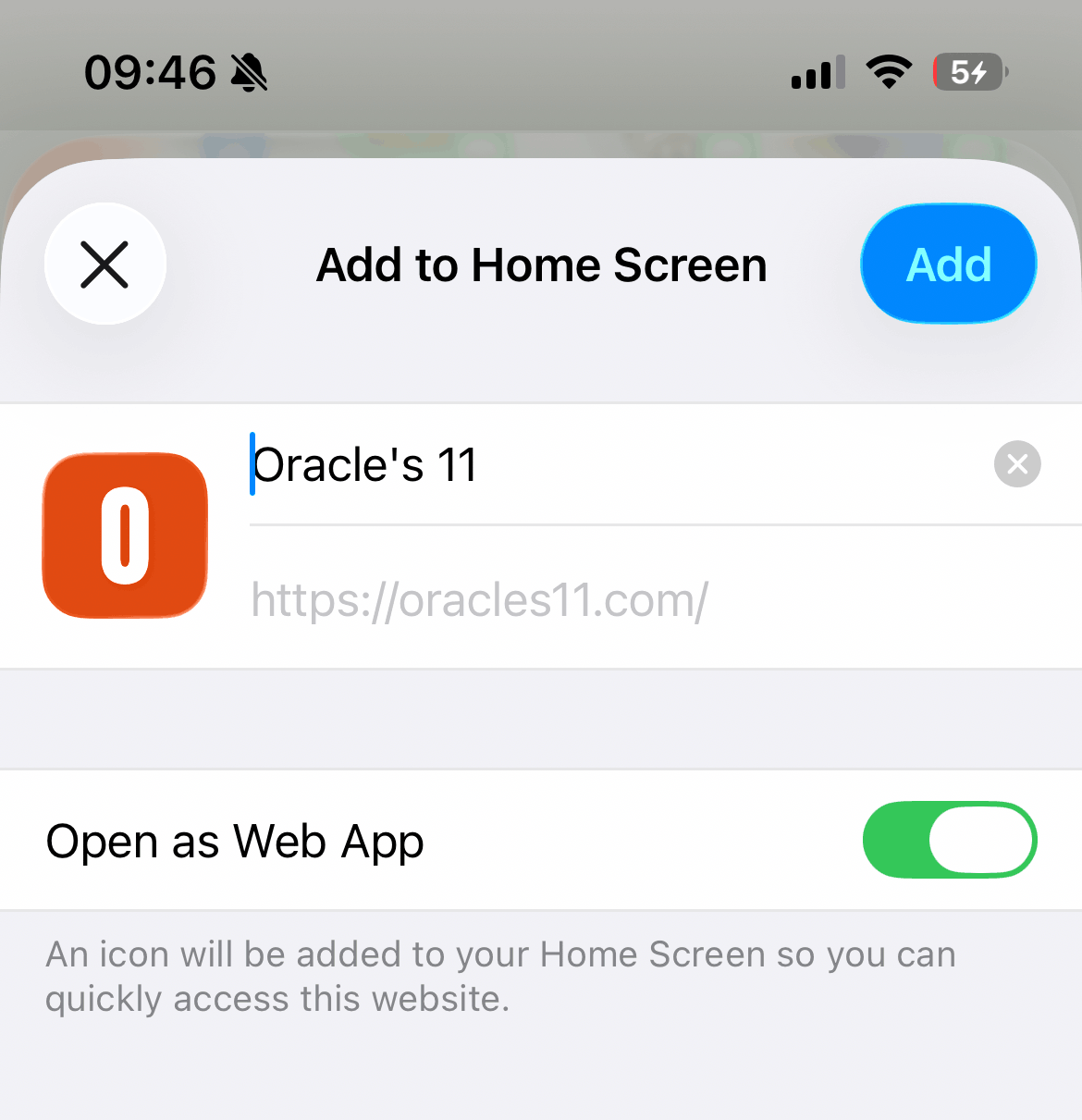
Scroll down the share sheet until you see it, then tap. You can rename it here if you like — the default is just "Oracle's 11".
-
4
Tap "Add"
Top-right corner. The "Oracle's 11" icon lands on your Home Screen alongside your other apps.
-
5
Launch it like an app
Tap the new icon. Oracle's 11 opens full-screen as a standalone web app — sign in once and you're set.
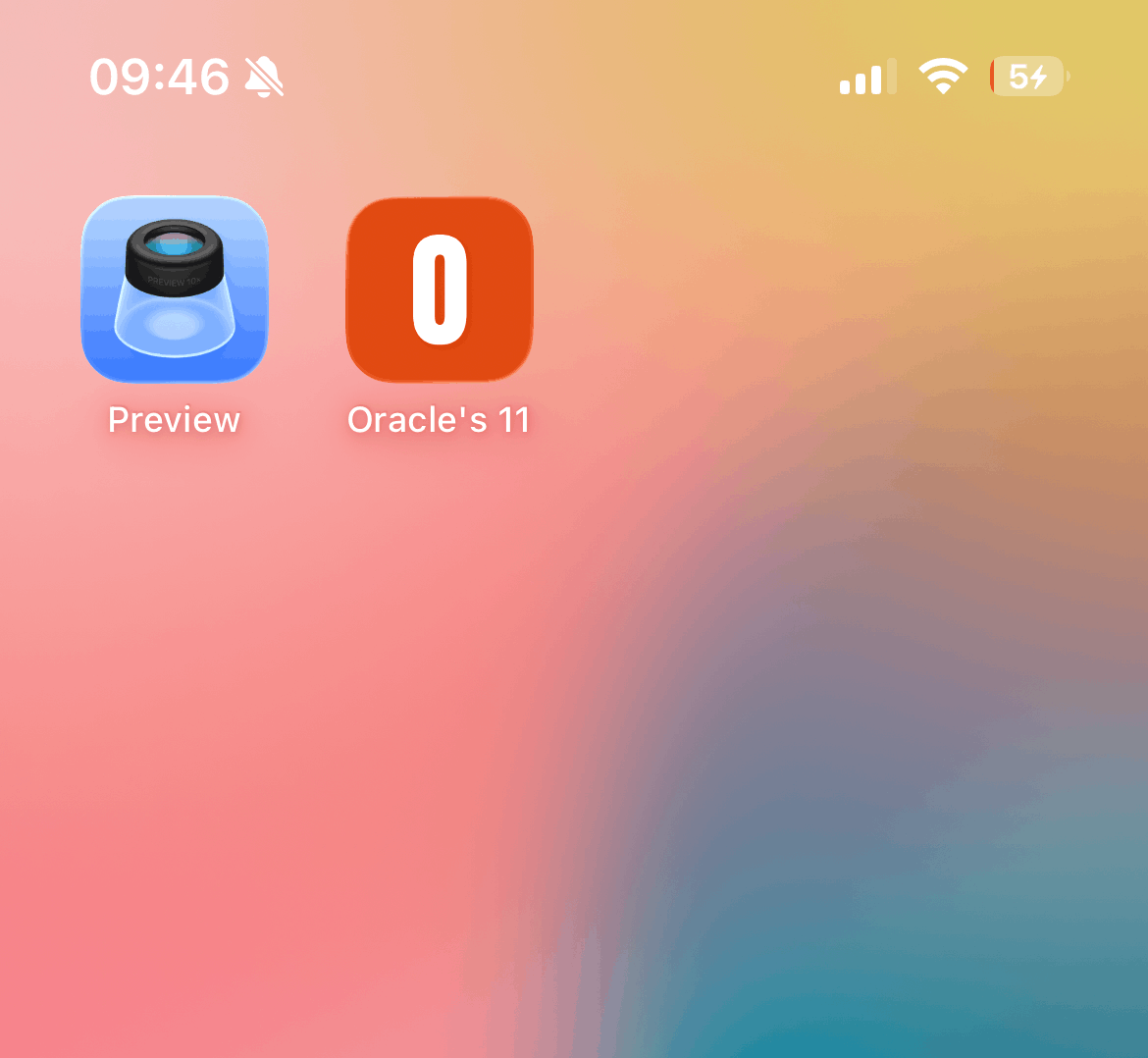
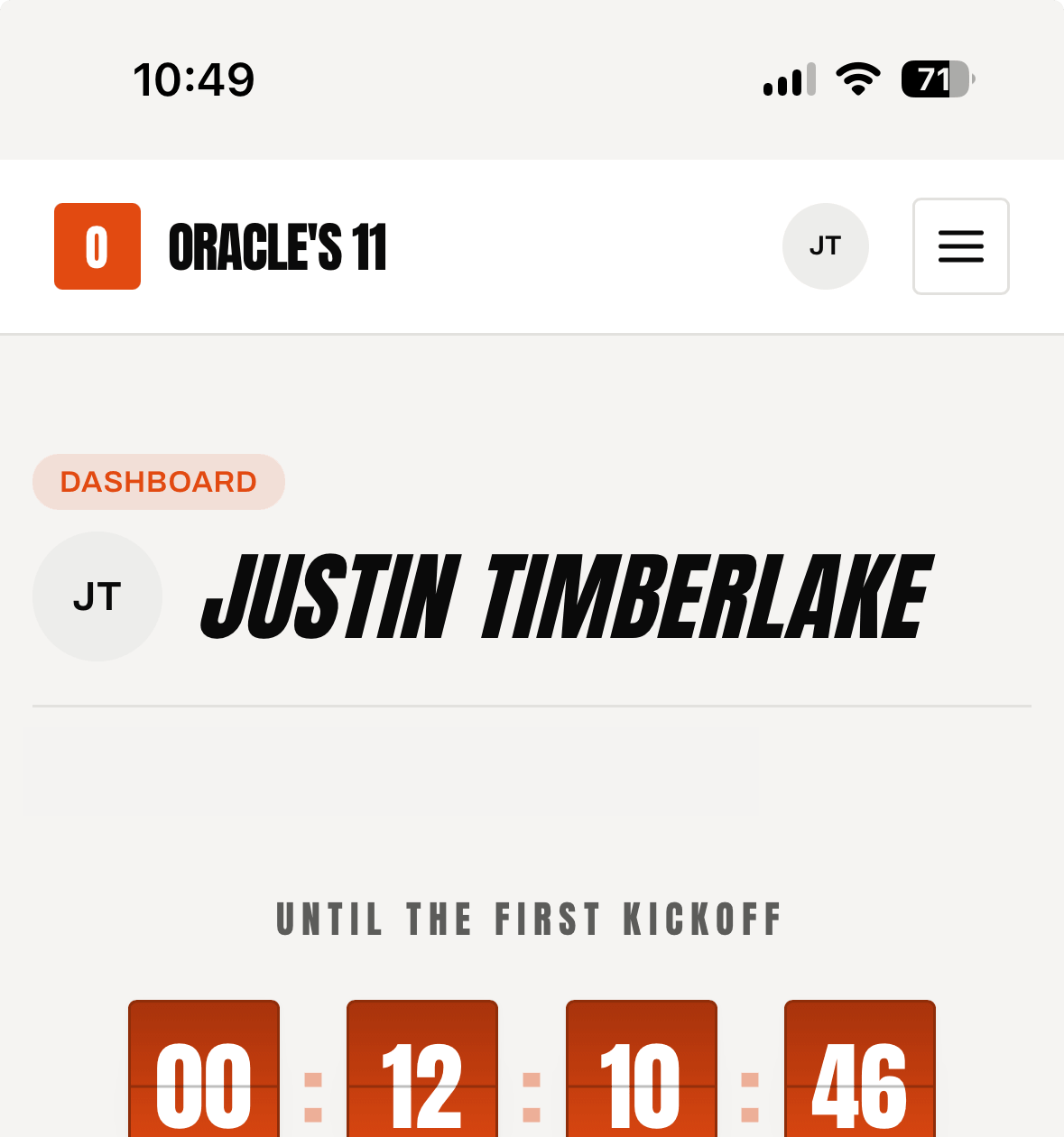
You're all set — Oracle's 11 is on your Home Screen.
Why run it as a web app?
- Full-screen. No address bar or browser chrome — more room for your bracket.
- One tap away. Right on your Home Screen, no typing the address or hunting through tabs.
- Nothing to install. It's just the website, pinned — no App Store, no download, no storage used.